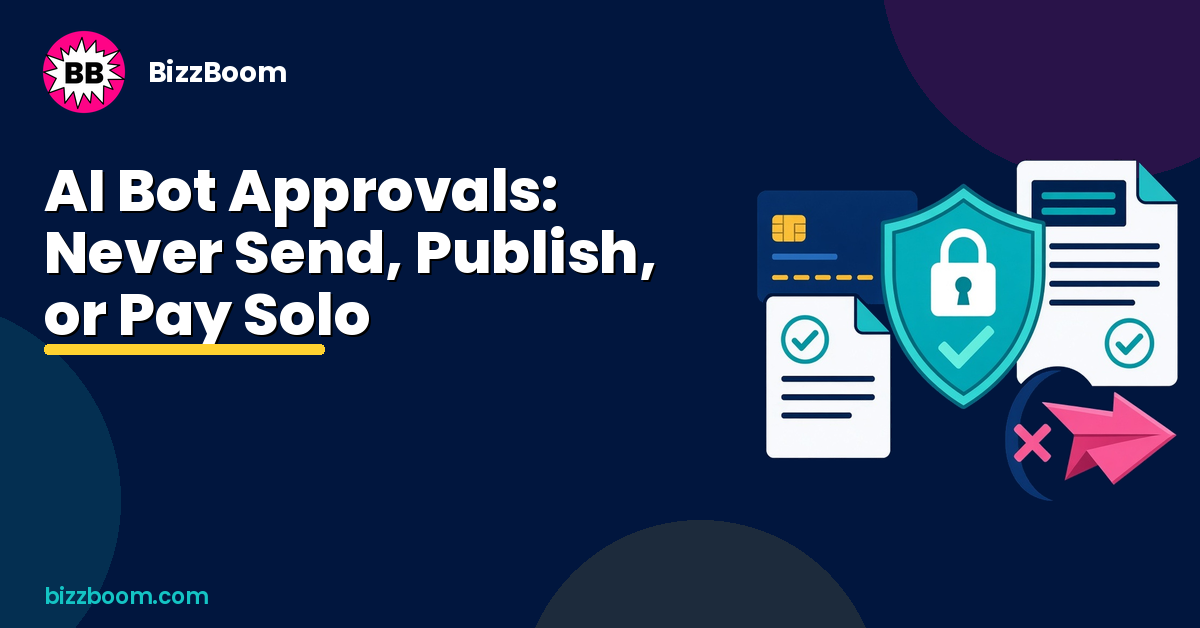
Never let a Bot send, publish, or pay without you. AI bot approvals are how I keep those actions in my hands. Grok Bot can prepare that work, and it can stop for an approval card, but Auto Review does not hold every action by default. You have to set the boundary in the request, add Ask first rules for actions you cannot undo, and keep payment cards out of Vault if you want to approve every charge.
AI bot approvals, in this product, are the cards and rules that stop a proposed action until you say yes. They control the next step. They do not undo work already done.
I treat “draft, don’t send” as the default in my businesses. This site is not affiliated with xAI, and this is not an official guide. The official page is Approvals, security, and privacy.
Why isn’t “be careful” enough?
Auto Review is on by default, and most actions run on their own. When an action needs you, the Bot shows an approval card with the proposed operation and its inputs, and waits. That is useful. It is not the same thing as a hard stop on every email, post, or payment.
Two official details matter here:
- If you ask for an email in the chat, it can go out once Auto Review allows it. If Auto Review needs you, you see a card first. Email from a routine, or from work you did not start in that chat, waits as a draft until you press Send.
- A card saved in Vault fills in at checkout without a separate approval each time. If you want to approve every payment, don’t save the card.
So the rule is not “the product will always ask.” The rule is “I will make it ask, and I will not give it a saved card if I want to see every charge.”
How do I set AI bot approvals that actually hold?
- Put the boundary in the job. Official guidance is to say which actions the Bot can take and where it must stop, especially for sending messages, publishing content, purchases and transfers, deletions, permission changes, production changes, and accepting legal terms. I say it in the first message and ask the Bot to remember it.
- Add Ask first rules. In Settings → General, under Bot, open Custom Rules. Describe one action in plain words — “send an external email,” “publish a post,” “delete a file” — and choose Ask first. An Ask first rule always stops a matching action. Official docs also recommend specific Ask first rules for sending, publishing, and deleting.
- Decide how payments work before the first checkout. If you want to approve every payment, do not save a card in Vault. Leave “Securely save to Bot’s vault” unchecked on a Secure Form, or remove a saved card in Settings → Vault. A saved card is convenient, and it is also a way to pay without a per-charge ask.
- Read the card before you approve. Check the target, the scope, and the values. If you cannot tell what the action will do, do not approve it. Ask the Bot to explain it in plain language or produce a draft first. Be slow with Always allow on anything that sends, publishes, or pays; that option can save a rule so similar actions run on their own next time.
- Know what happens if you don’t answer. A card from a chat you started waits and does not expire on a timer. A card from a routine or other background work expires after 30 minutes, and the Bot does not do the action. If you send a new message instead of answering, open cards in that chat close. On a short week, that 30-minute window is easy to miss. Drafts can wait. Don’t loosen the rule to make them faster.
Do not paste a password, one-time code, or API key into ordinary chat. Logins go through Vault, a connected password manager, or a Secure Form. Cards go through Vault or a Secure Form. API keys go through a secure secret card.
What about email, posts, and payments, specifically?
Sending. Tell the Bot to draft and not send. Add an Ask first rule for sending external email or messages. Remember the split above: a chat you started can go out once Auto Review allows it, unless a rule or a review stop catches it. A routine’s email should wait as a draft. Forwards, and mail with an attachment Auto Review cannot fully read, always wait for your okay.
Publishing. Same pattern. A Pinterest pin, a blog post, or a social update can be drafted and queued for you. It should not go live because the Bot finished the copy. Say “do not publish.” Add an Ask first rule for publishing.
Paying. The cleanest control is not to save a card. If a Bot reaches checkout, you can enter a card for that moment without saving it, or approve an exact total in the chat when the product asks you to. I would not store a card “just in case” on a Bot that also has a computer and a browser.
An approval never reverses a send, a publish, or a charge that already happened. The stop has to come first.
What should I not do?
Do not turn Auto Review off so things feel faster. With it off, the Bot runs actions without those checks, and your Custom Rules are not used until you turn it back on.
Do not assume separate Bots are a security boundary. Official docs are direct: all of your Bots share one cloud computer, including files, browser sessions, and saved logins. Sign out of a service a Bot no longer needs.
Do not approve a card whose target you cannot identify. “Allow” is not a courtesy. It is permission to do the thing.
Do not treat this post, or any post on this site, as official xAI policy. Name the product accurately. Keep your own brand on your pins and pages.
FAQ
If Auto Review is on, am I already safe?
No. Auto Review is on by default, but most actions still run on their own. Use it together with a written boundary and Ask first rules for sending, publishing, and deleting.
Will a routine send email while I am away?
Official docs say email from a routine waits as a draft until you send it. I still put “do not send” in the job, and I still use an Ask first rule. I want more than one stop on that door.
How do I make sure a Bot can’t pay without me?
Don’t save a payment card in Vault. Official docs say a saved card fills in at checkout without asking you each time, and that if you want to approve every payment, you should not save the card.
What if I accidentally click Always allow?
That can save an Allow rule for similar actions. Open Custom Rules and delete or edit that rule. Future actions should follow the corrected rule. It does not undo an action already completed.
Is this an official xAI or Grok Bot guide?
No. I am writing from the public docs and from how I run the product in my own businesses. I am not partnered with or endorsed by the company.
Next step
Open Custom Rules today and add Ask first stops for sending and publishing. If a card is saved in Vault and you want to approve every payment, remove it. Then add “draft, don’t send” to the first message of each Bot that touches email or posts.
Related:
- What is Grok Bot? A plain-English guide for solo operators
- How to staff a one-person business with AI teammates
- Don’t give one Bot every job
Written by Janine Suvak.


0 Comments